

- Embedded page: the app’s own design, styled with the settings below.
- Custom page template: replace the design with your own markup, per market. See Custom page templates.
Page
Page Title: defaultMy Wishlist.
Floating button
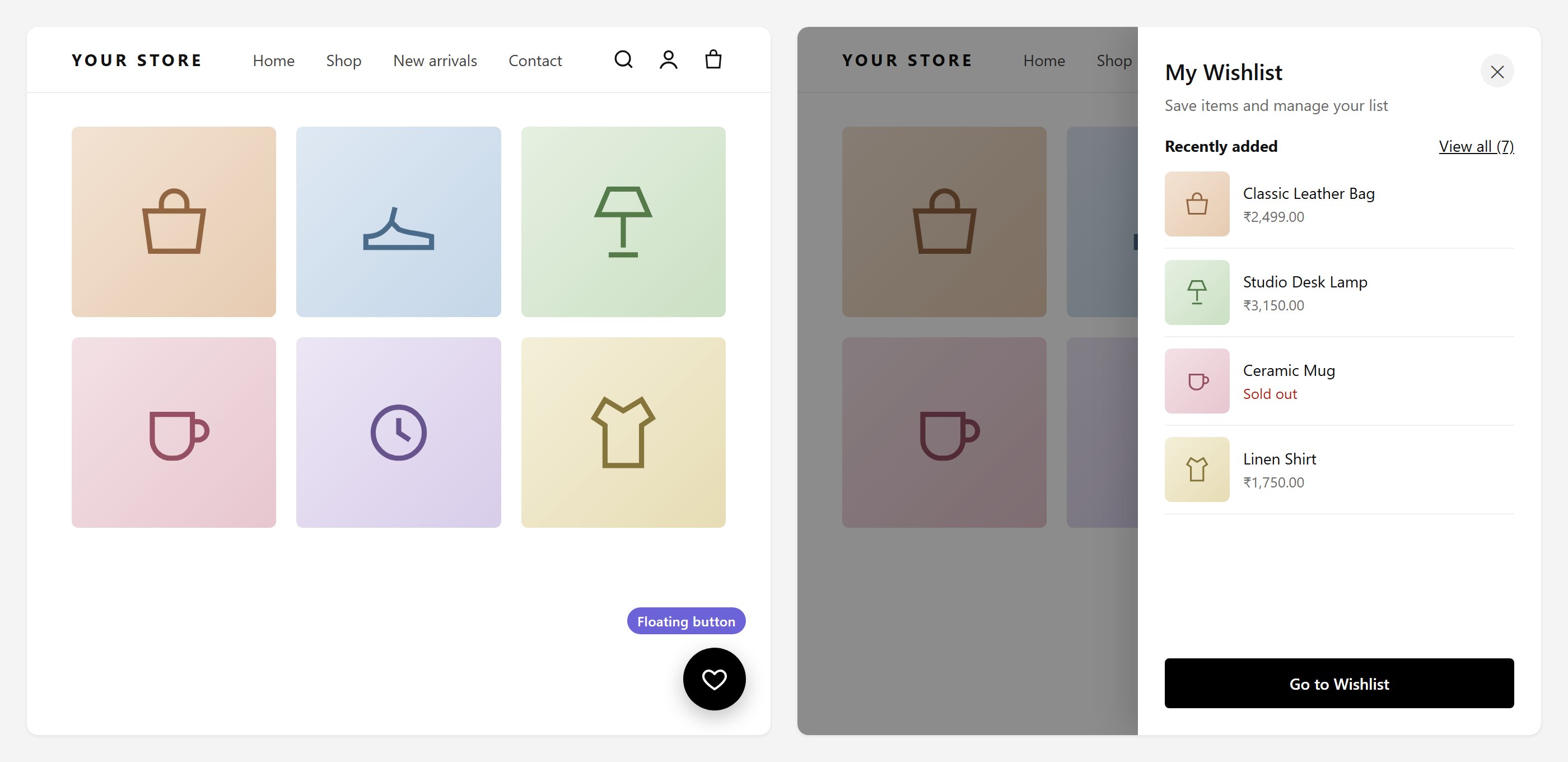
Left: the floating button. Right: the drawer it opens, with recently added items.
Wishlist drawer
These settings appear only while the floating button is on.Sharing
If your plan does not include sharing, these switches are locked and show an Upgrade plan link. See Sharing wishlists.
Account page text
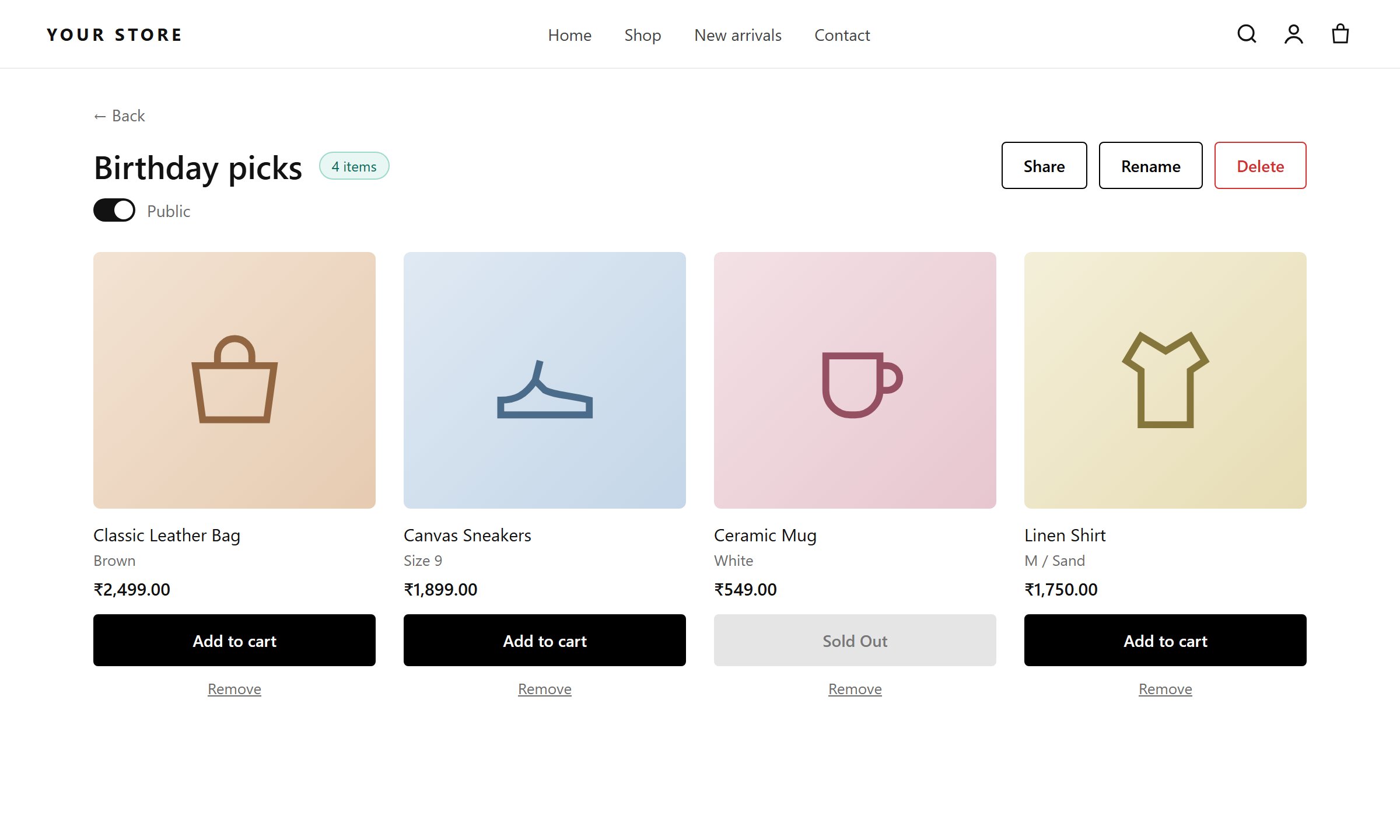
A wishlist's detail view, with Share, Rename, Delete, Add to cart and Remove
Wishlist Account (list of wishlists)
Wishlist Account (list of wishlists)
- Page: Page title (
Wishlists), Create list button text (Create a List) - Wishlist cards: View list, Delete, item/items labels, empty wishlist message
- Load more: wishlists per page (8), loading text, Load More button text
- Create Wishlist popup: heading, description, name label and placeholder, Cancel and Create buttons
- Delete Wishlist popup: heading, warning title, description, caution text, Cancel and “Yes, Delete Wishlist” buttons
Wishlist Detail Account Page (one wishlist)
Wishlist Detail Account Page (one wishlist)
- Detail page: Back, item labels, Share, Rename, Delete, Add to cart, Sold Out, Remove, Load More, items per page (6)
- Share popup: heading (
Share This List), Copy button text, Share page URL - Rename popup: heading, description, field label, Cancel and Rename buttons
- Remove item popup: heading, confirmation text, Cancel and “Yes, Remove” buttons