

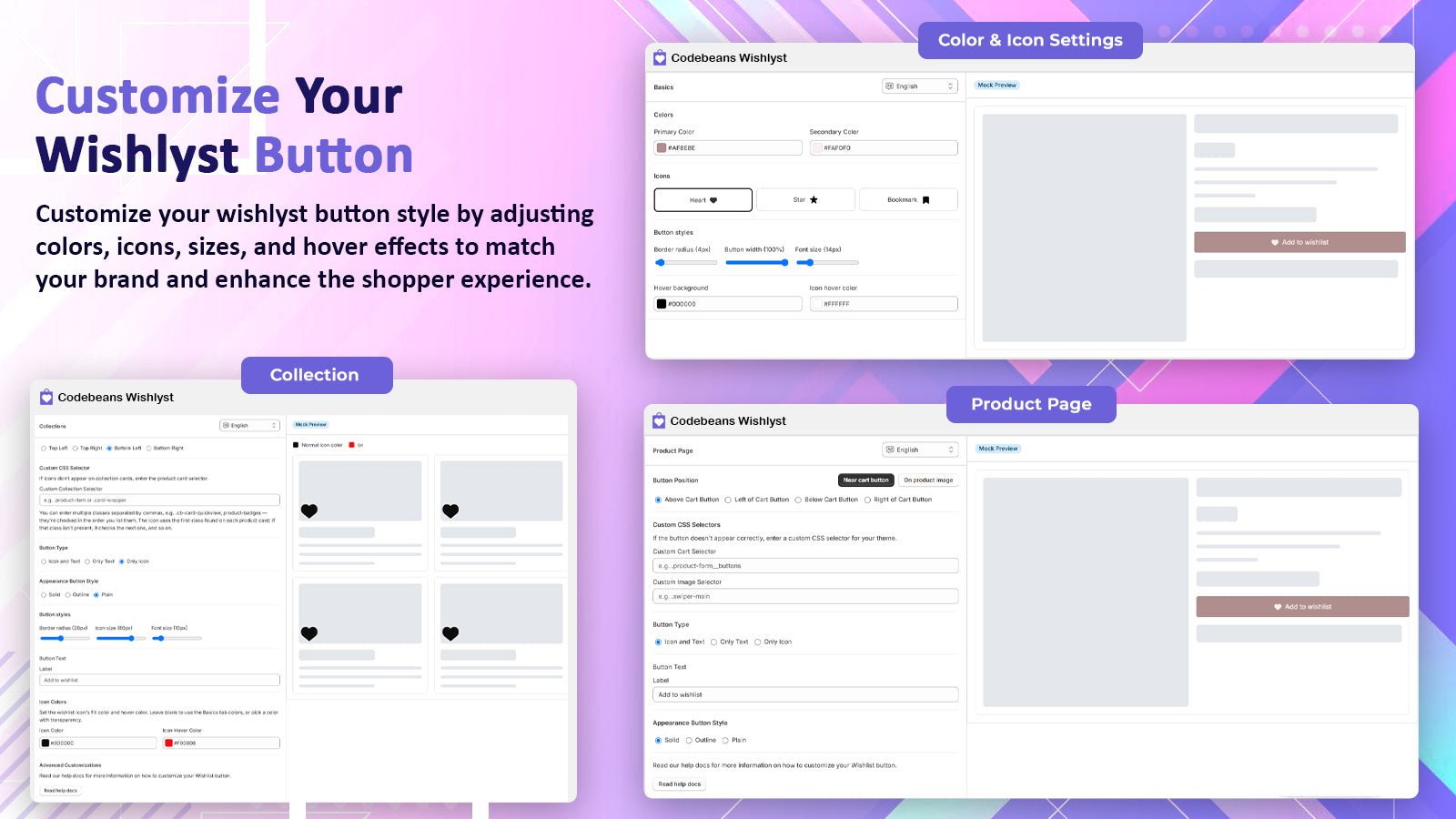
Manage Wishlist: Basics, Collections and Product Page tabs, each with a live preview
Every tab with text has a language selector. See Translations.
Wishlist mode
How many lists can a shopper keep?- Multiple lists (default)
- Single list
Shoppers can create, rename and delete as many wishlists as their plan allows. Clicking the wishlist icon opens a chooser where they pick one or more lists, or create a new one.
The number of wishlists each shopper can create also depends on your plan (Wishlists per Signed-On User and Wishlists per Guest User).
Colors
Primary Color (default#000000) is the main color of buttons and icons across the wishlist. Each tab can override it.
Icons
Choose Heart (default), Star or Bookmark. The icon is used everywhere: product page, collection cards, drawer and floating button.Button styles
Default product image
Shown wherever a product has no image of its own: the wishlist popup, the wishlist page and shared wishlists.- Select image picks one from your Shopify files.
- Or paste an image URL (must start with
https://). - Use app default goes back to the built-in placeholder.