

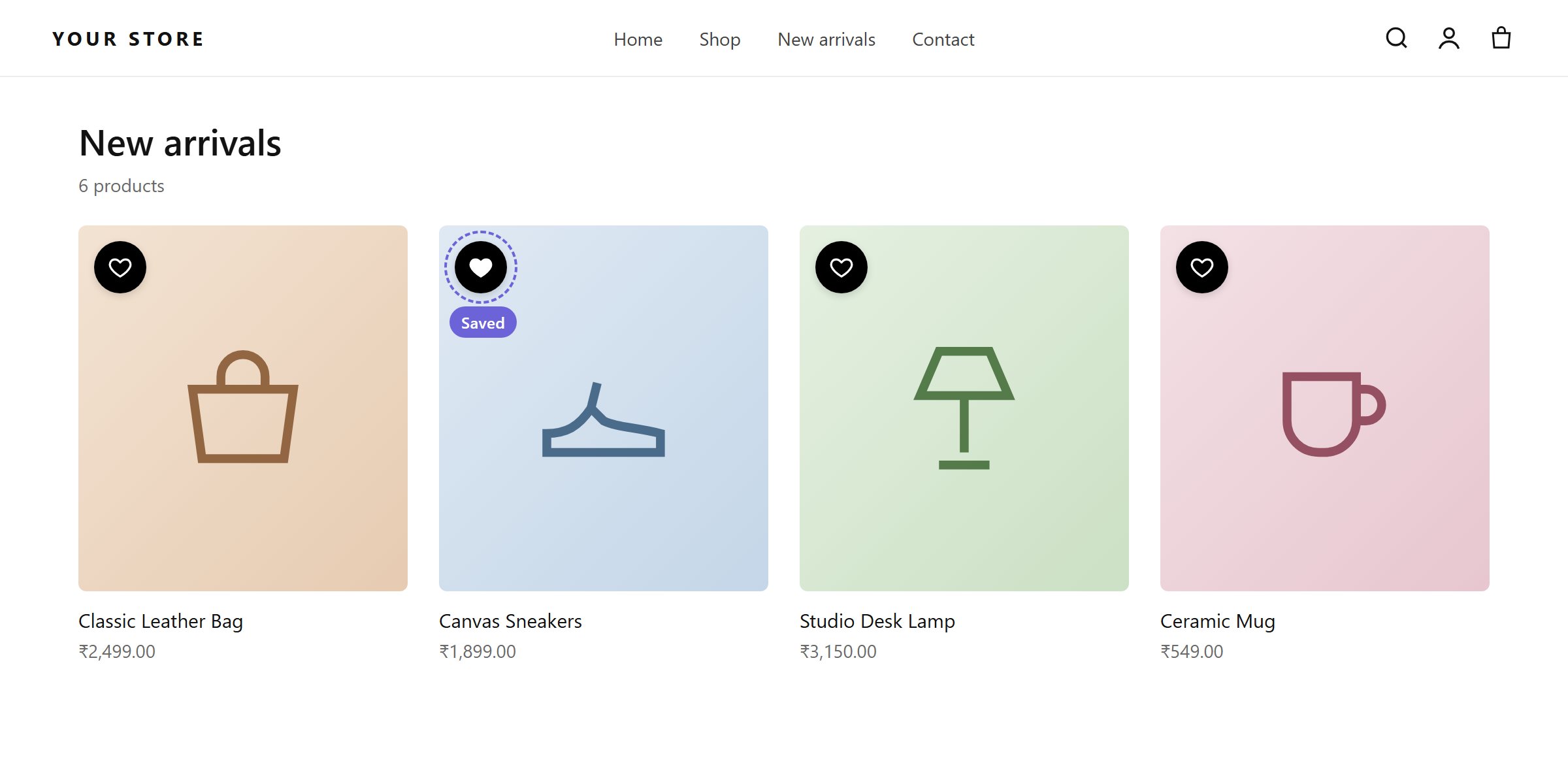
Hearts on product cards. A filled heart means the product is saved.
The Wishlist on collection page toggle under Insights → Wishlist Settings must be activated, and the Wishlist Engine app embed must be on.
Icon position
Top Left (default), Top Right, Bottom Left or Bottom Right of the product card.Custom CSS selector
The app detects product cards on most themes. If yours uses custom cards, enter a selector in Custom Collection Selector, for example.product-item or .card-wrapper. Separate several selectors with commas. Every matching element gets its own icon.
Icon Placement controls where the icon goes relative to that selector:
- Inside selector (default)
- Above selector
- Below selector
Style
You can also set the label (for “Icon and Text”), the icon colors and the text colors, as on the product page.